How to design a layout on a computer
Layout drawn on a computer
When thinking about an N gauge layout,
- Will it fit on this desk?
- Will the rails connect properly?
- Can it be expanded in the future?
Do you ever feel anxious about this?
If you've been enjoying this game for a long time, you may have had the experience of drawing a layout by placing a ruler on graph paper and calculating the radius of the curves.
It was also fun to erase the mark over and over with an eraser and try again, thinking, "This point won't go in."
The layout design software "SCARM"is.
Simply place the rails on your computer and it will automatically check whether they are properly connected. This software is a great ally for both those who are familiar with the benefits of analog and those who are just starting out.
What is SCARM?
SCARMis software that allows you to place N gauge rails on your computer and design layouts.
This software was created by Bulgarian developer Dimitar Dimitrov and is available to model train enthusiasts around the world, with ongoing updates.
In addition,SCARM is a Windows-only software.There is no official Mac version at this time.
- You can check whether the rails are properly connected.
- You can also create overpasses and grade separations.
- You can see the completed image in 3D.
It has all the functions you need for layout design.
SCARM comes in both free and paid versions, but the free version is sufficient for designing compact layouts and recreating rail sets.
The paid version removes the limit on the layout size you can create and gives you access to more advanced features, but it's fine to start with the free version.
This is a tool that you should definitely try out before creating a full-scale layout.
How to install SCARM
- Official websiteDownload from
- Run the downloaded installer (.exe)
- Click "Next" on the screen several times
- Click "Install" → "Finish" to finish
No special settings are required.
Basic operation of SCARM
Select the manufacturer you want to use
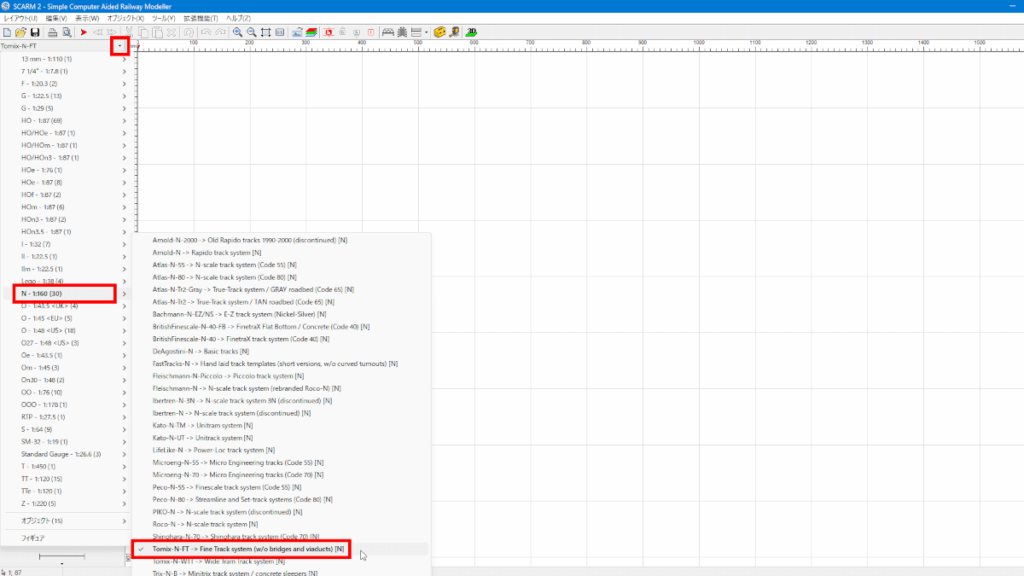
When you start SCARM, the first thing you need to do is choose which manufacturer's rails you want to use.
- Click the "▼" in the upper left corner of the screen
- Select "N – 1:160" from the list displayed (for N gauge)
- If you use TOMIX, select "Tomix-N-FT"
- If you use KATO Unitrack, select "Kato-N-UT".
Rail placement
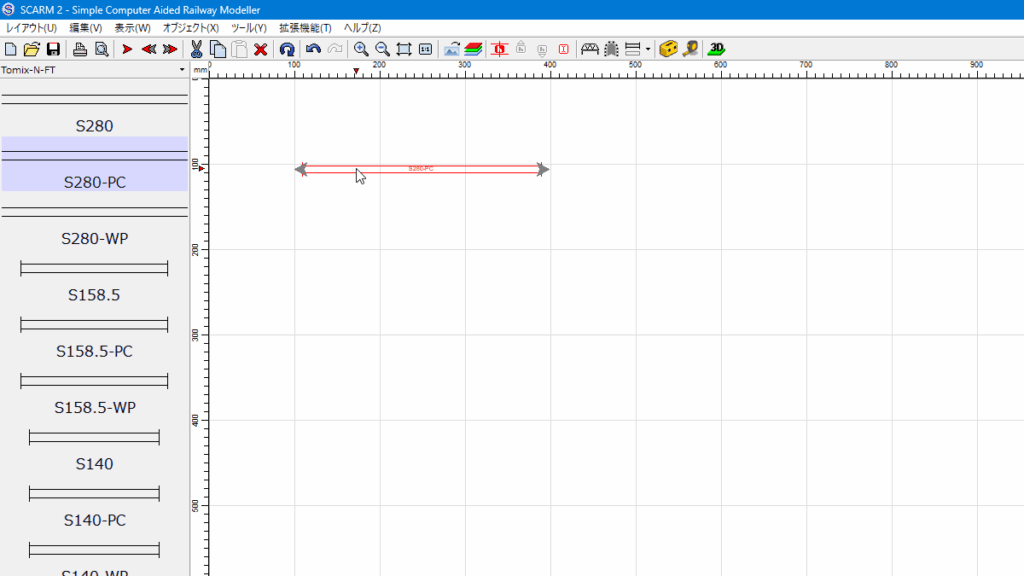
To install a rail, simply select it from the list on the left side of the screen and drag it to the desired location.
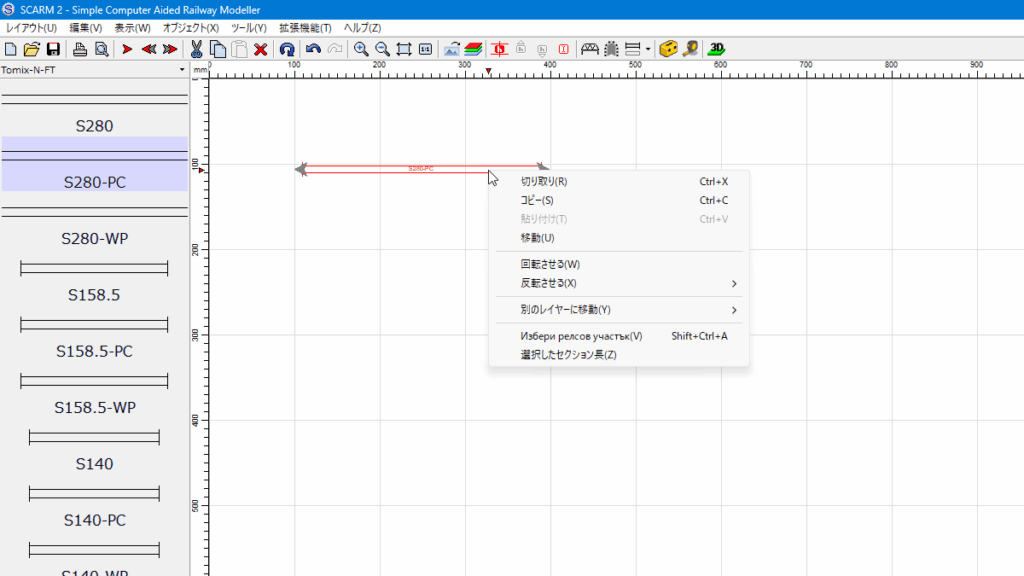
Right-clicking on a rail displays a menu where you can perform operations such as "rotate" and "move." Most commonly used operations in layout design can be performed from this right-click menu. You can create layouts intuitively without having to remember any special operations.
Rail Connection
Drag the rails you want to connect together and the connecting part of the rails will light up.
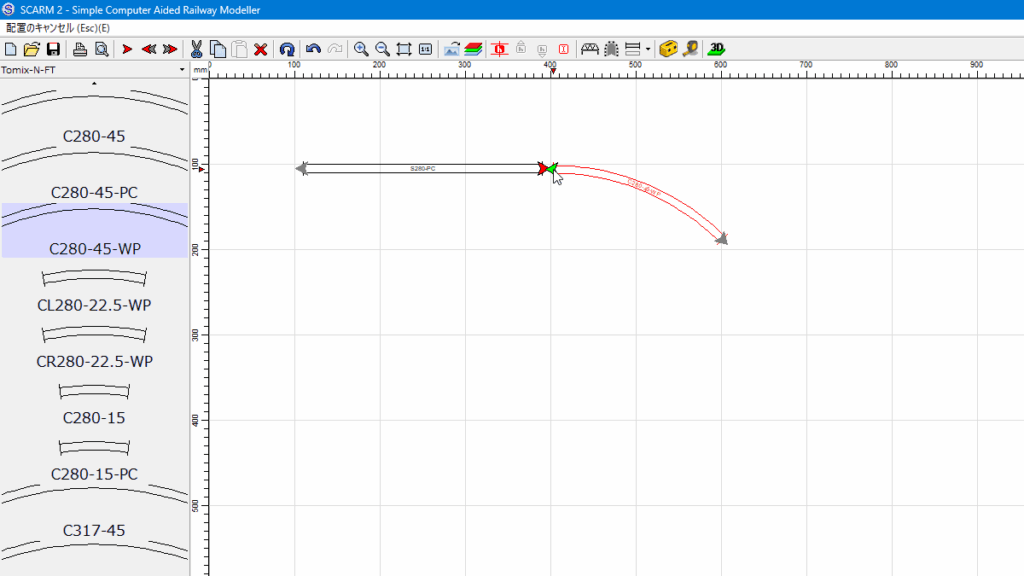
When you release the mouse button, the rails will automatically adjust their position and connect perfectly.
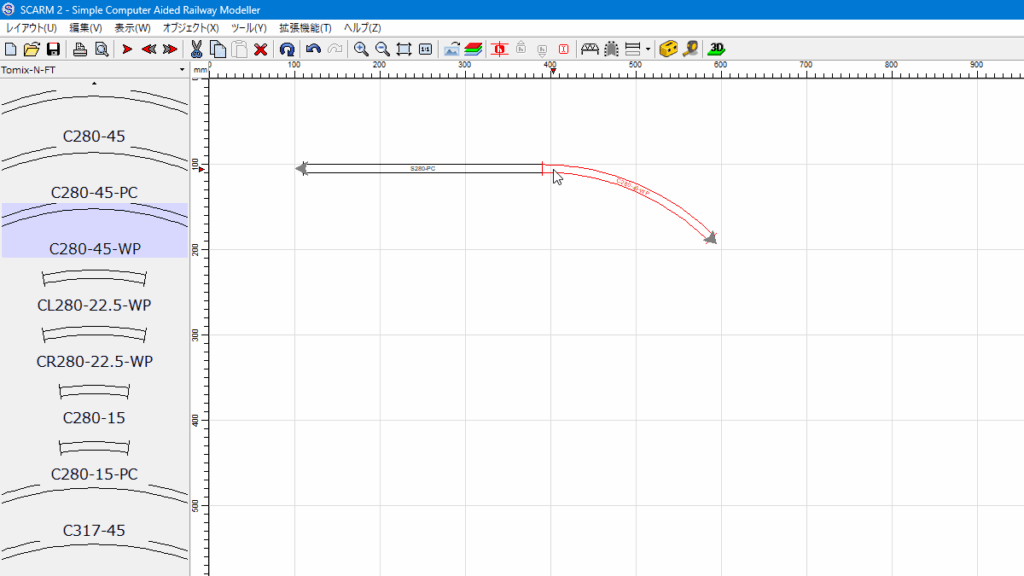
To delete a rail, select it and press the Delete key.
Copy the layout plan
If you are considering purchasing a starter set or rail set, try recreating its contents in SCARM.
The process is very simple.
- Check the rail configuration of the set
- Select rails with the same model number using SCARM
- Arrange as per original layout
Then,
- Will it fit into the space you plan to install it in?
- Is there room for buildings and stations?
- Is there space for future expansion?
You can check in advance.
SCARM layout data
As an example, we will use the layout plan posted on the Tomix official website (Rail pattern A+B) in SCARM. The actual rail layout is reproduced exactly, so it's also recommended as a practice tool to get used to operating SCARM.
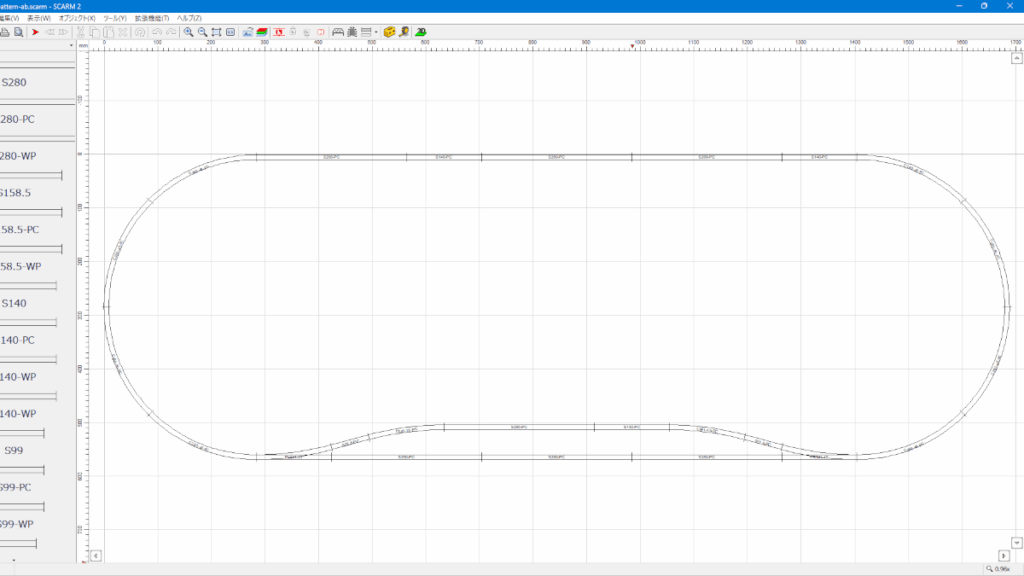
The layout data (.scarm) you create can be downloaded. Please open it and use it as a reference.
SCARM layout data
*Can be opened with the free version of SCARM
Simply simulating it once before purchasing can greatly reduce the chances of making mistakes when creating a layout.
View the completed image in 3D
You can display the layout in 3D by selecting "View" → "3D Viewer" from the menu. This will help you get a better idea of what the finished product will look like.
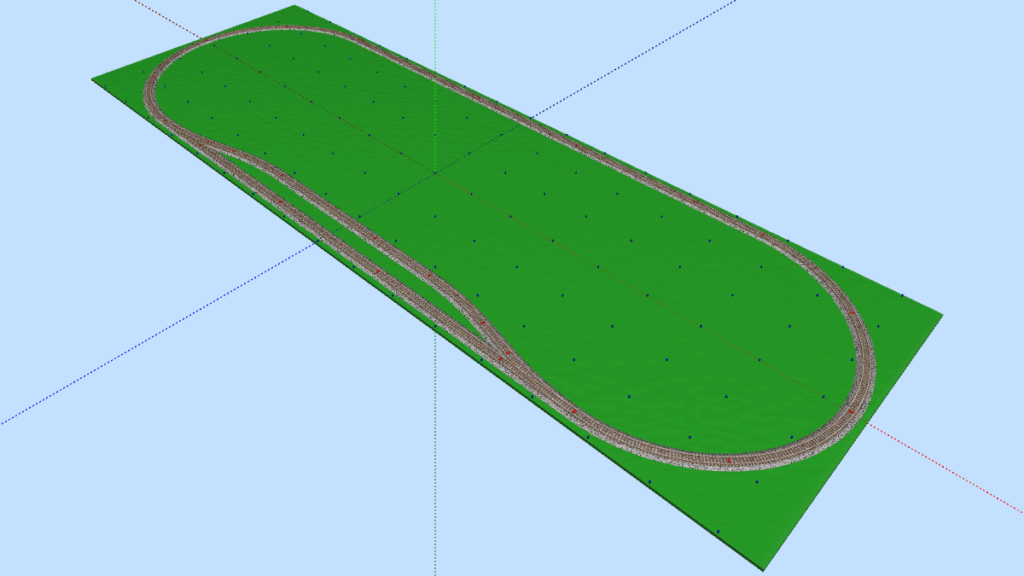
Benefits of using SCARM
- You can check the type and number of rails you need in advance
- No need to buy unnecessary rails
- Check whether it will fit into your installation space
- Easily plan for future expansion
You can simulate the layout before actually creating it, so you can proceed with planning with peace of mind.
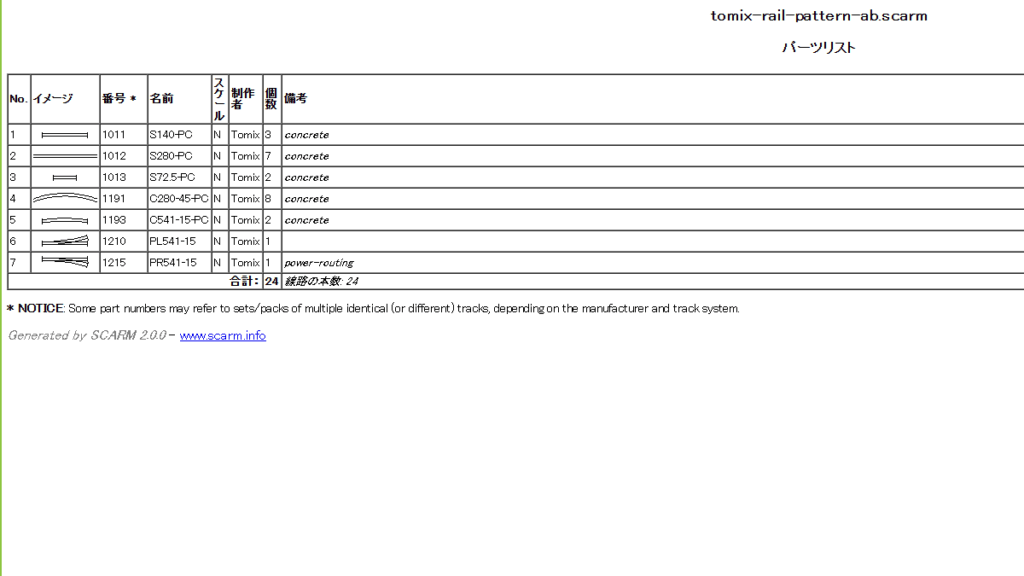
You can also check the list of rails used in the "Parts List." Select "Tools" → "Parts List" from the menu, and the model number and number of rails required will be automatically displayed.
summary
SCARM is an essential software for layout design.
- For beginners
- For those who are planning to purchase a rail set
- Those who want to create a full-fledged fixed layout
Highly recommended for all N gauge enthusiasts.