How to use PLATEAU
What if we could capture an actual city as 3D data and use it to design the structure of a model?
The one who can make such an idea a reality is "Plateau" In this article, "Unity"and"Plateau" will explain the steps to obtain an actual 3D city model and connect it to CAD design in a way that even beginners can easily replicate. Your layout creation will move to a more realistic world.
What is Unity?
Unity is a real-time 3D development environment that can be used to create 3D games, VR, architectural visualization, etc. Because it allows intuitive manipulation of 3D space, it is possible to display and edit city models without using specialized CG software, and it is widely used as the platform for handling PLATEAU's 3D city models.
What is PLATEAU?
PLATEAU is a 3D city model project for Japan, released by the Ministry of Land, Infrastructure, Transport and Tourism. It provides high-precision 3D data of existing buildings and roads, making it useful not only for urban planning and simulation, but also for model design and structure production.
Installing Unity Hub
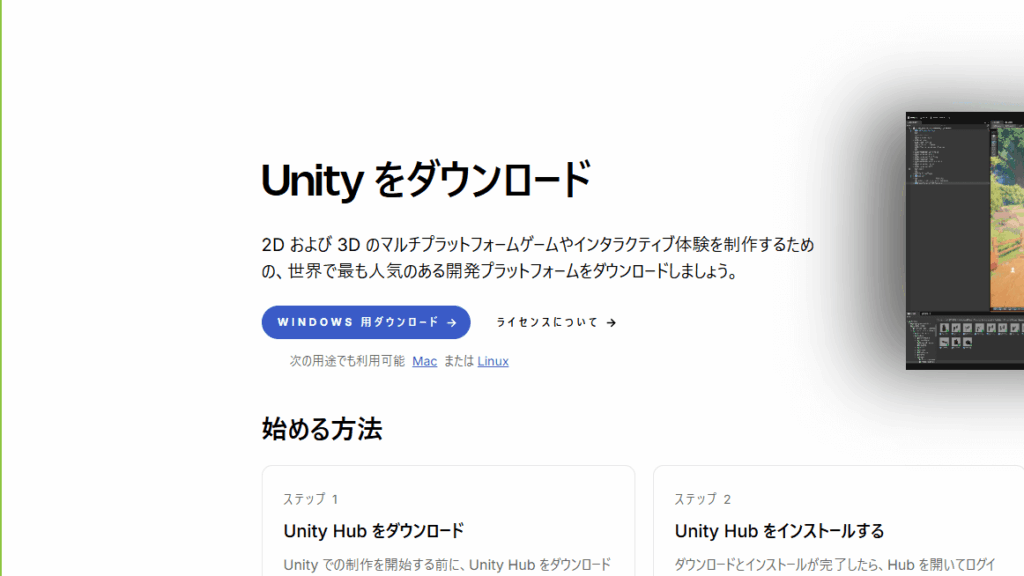
Download Unity Hub
- Official websiteOpen
- Click the "Download for Windows" button on the left side of the screen.
*Unity is free for personal use.
Installing Unity Hub
- Run (double-click) the downloaded file (UnityHubSetup-x64.exe).
- Follow the on-screen instructions to proceed with the installation
- Once the installation is complete, launch Unity Hub.
Sign in with your Unity ID
You will be asked to enter your Unity ID. If you do not have an account, click "Create account" to create a new one. You can register with your email address and password, or you can register with your Google account.
Unity Hub Japanese version
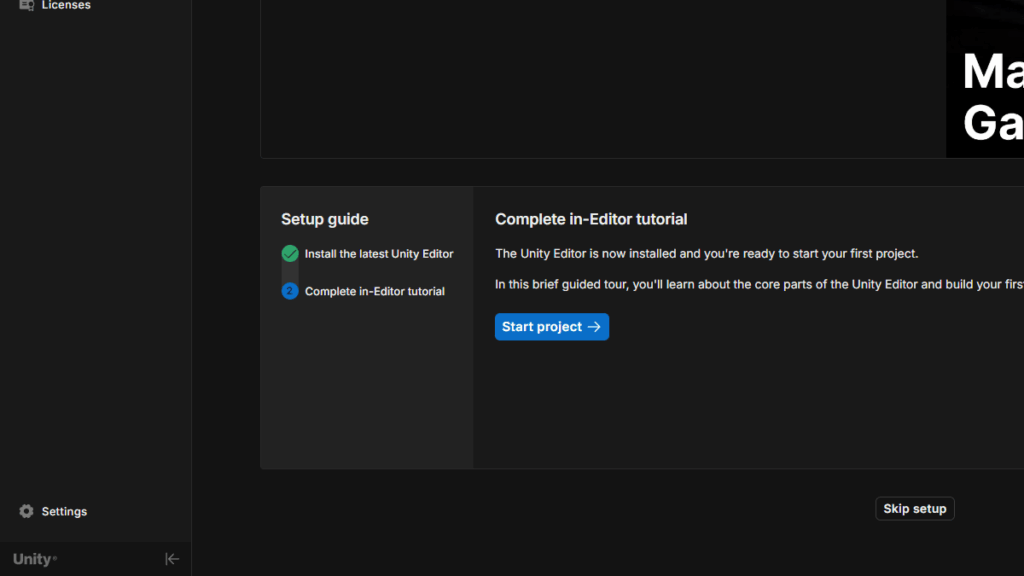
Click "Settings" at the bottom left.
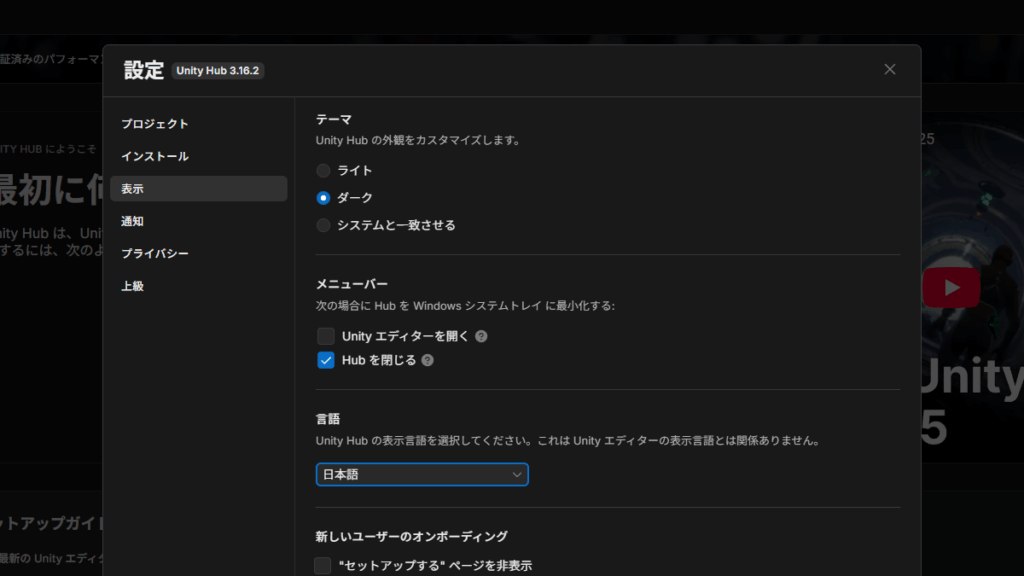
- Once the settings screen opens, select "Appearance" from the left menu.
- Change "Language" to "Japanese"
Installing Unity 2022.3 LTS
Download Unity 2022.3 LTS
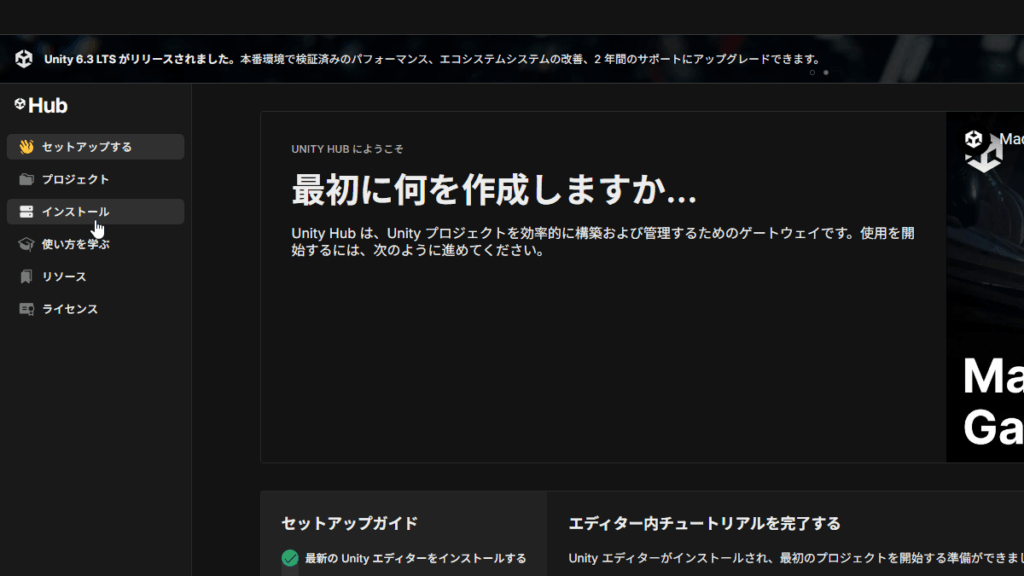
Click "Install" in the Unity Hub left menu.
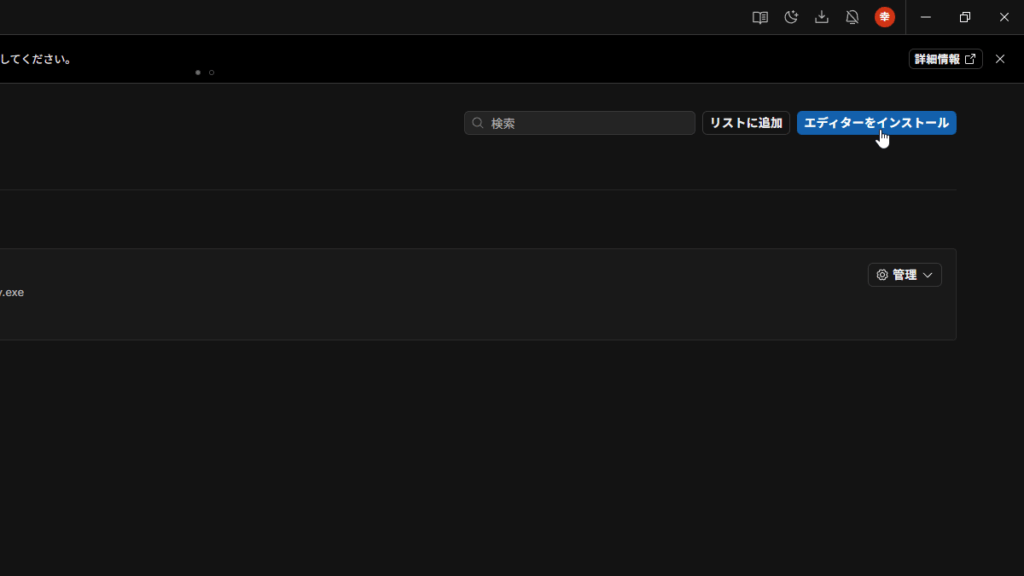
Click "Install Editor" in the top right corner of the screen.
From the list, click "Install" for "Unity 2022.3 LTS."
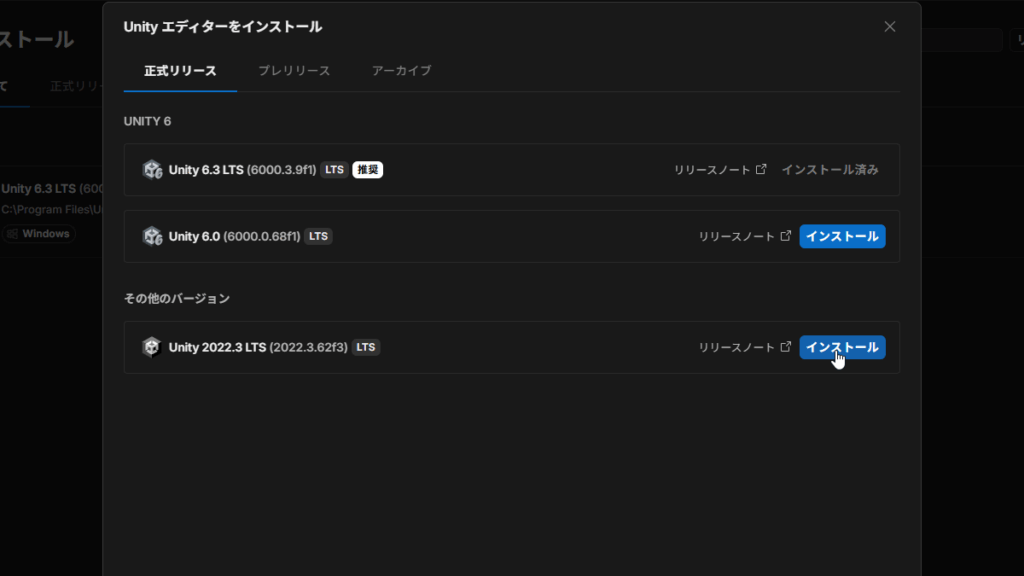
Then click "Continue" at the bottom right of the screen.
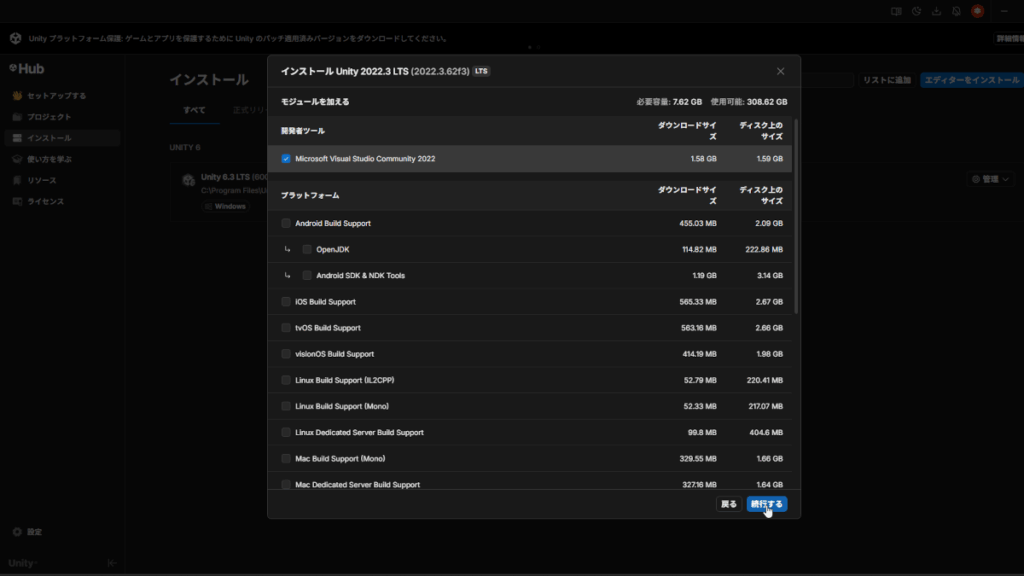
Check "I accept the terms of use" at the bottom left of the screen and click "Install."
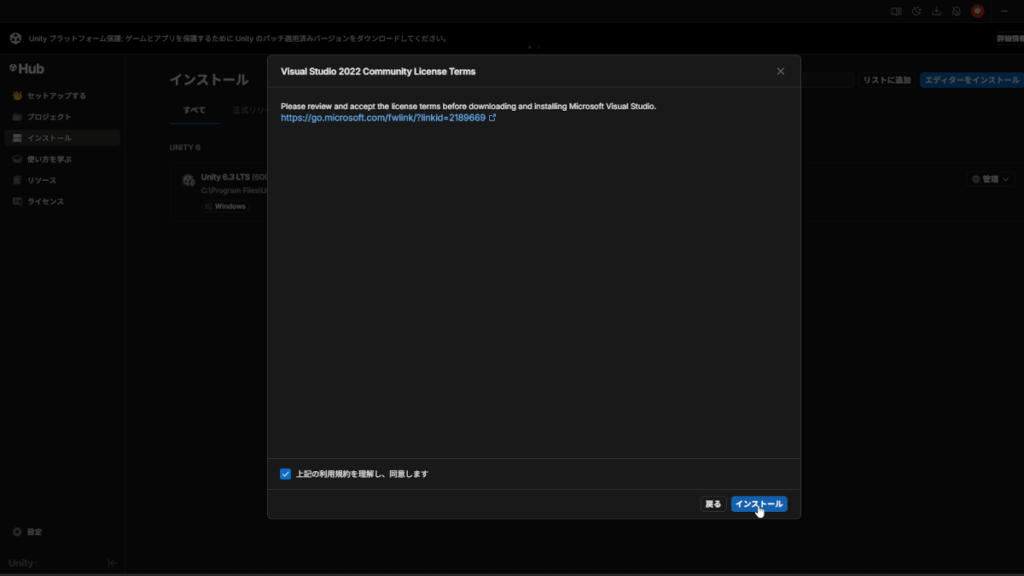
The download will begin. You can leave your PC running until it is complete. The download time will vary depending on your environment, but it will take approximately 20 to 30 minutes.
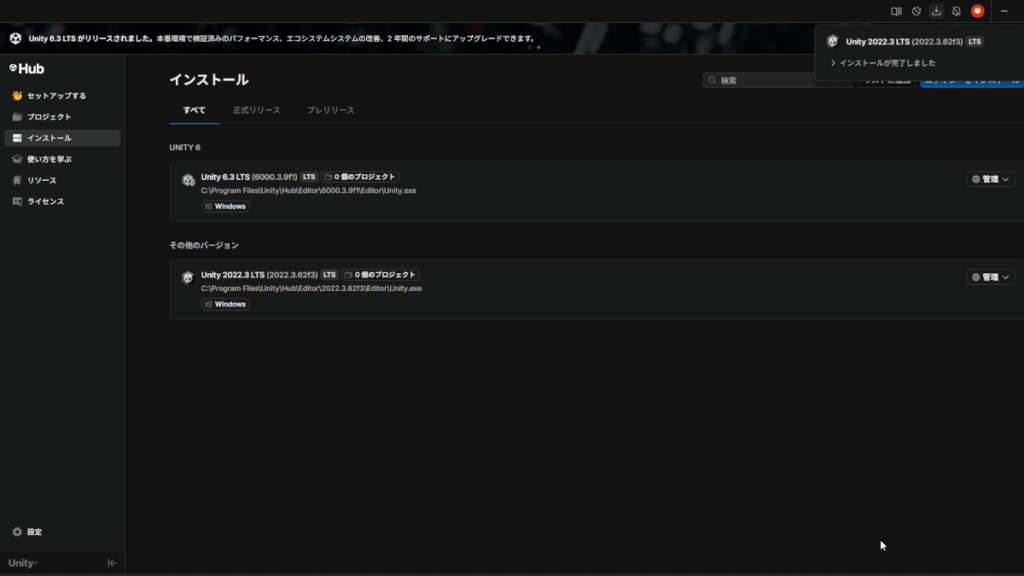
The installation is complete when "Installation complete" is displayed in the upper right corner of the screen and "Unity 2022.3 LTS" is displayed under "Other Versions."
Creating a Unity project
Click "Projects" on the left side of the Unity Hub, then click "New Project" in the top right corner of the screen.
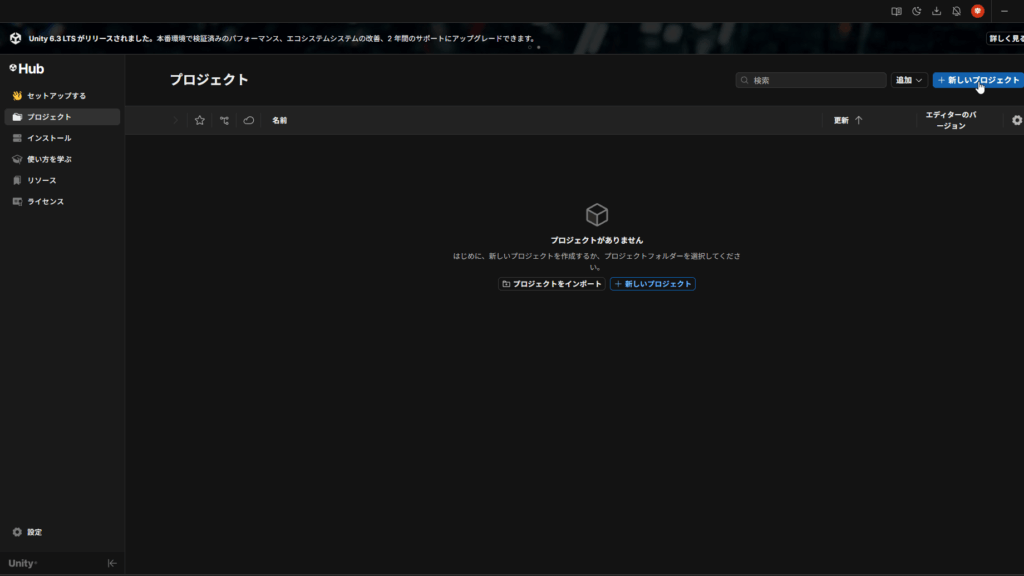
- In Editor Version, select "2022.3.**** LTS" from the dropdown.
- Select "3D" from the template list.
- In "Project Name"My project” (any name)
- Specify a folder in "Save in"
- Click the Create Project button
- Wait a while until the project creation is complete
In this article, we will use the project name "My project".
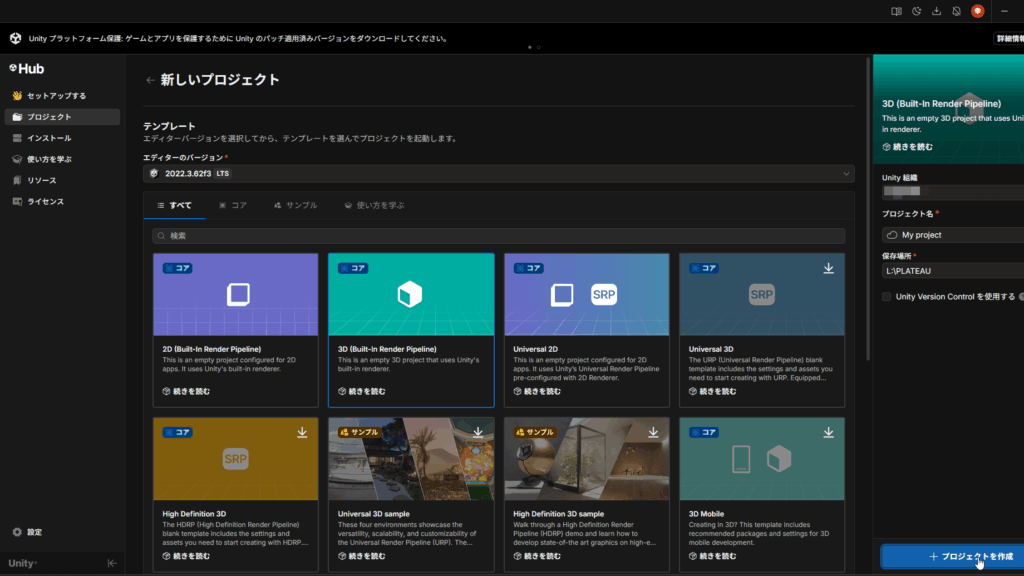
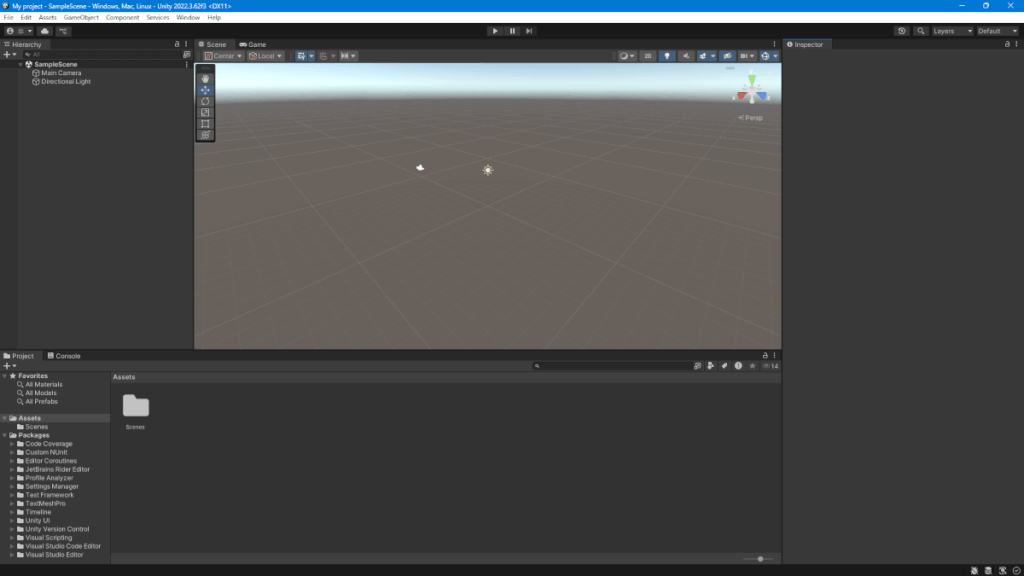
Once the Unity screen opens, the project creation is complete.
Installing the PLATEAU SDK
Download the PLATEAU SDK
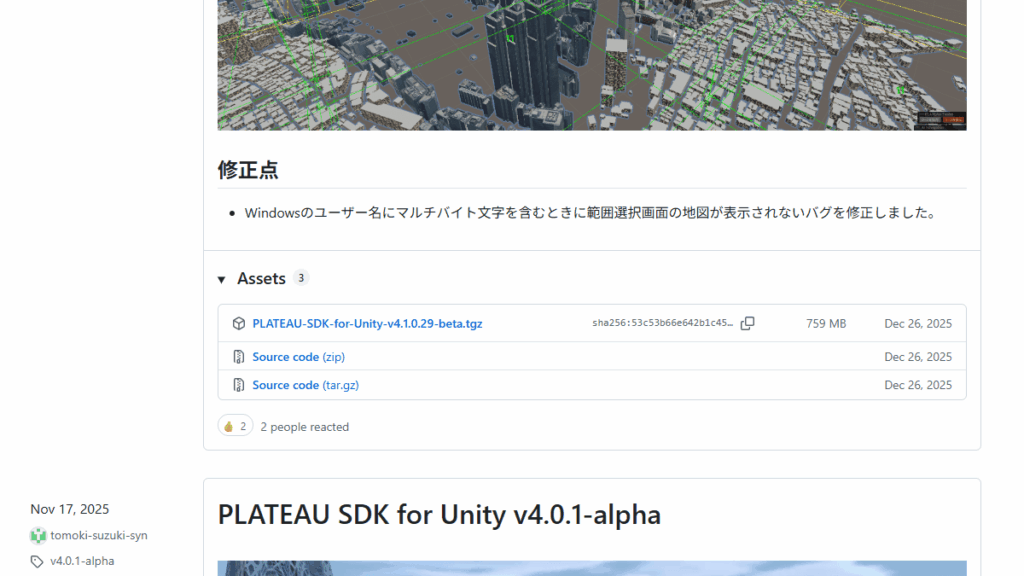
GitHub's "PLATEAU-SDK-for-Unity" release page.
Scroll down the screen and click the latest version of "PLATEAU-SDK-for-Unity-v*.tgz" to download it. You can determine the latest version by checking the version number.
Installing the PLATEAU SDK
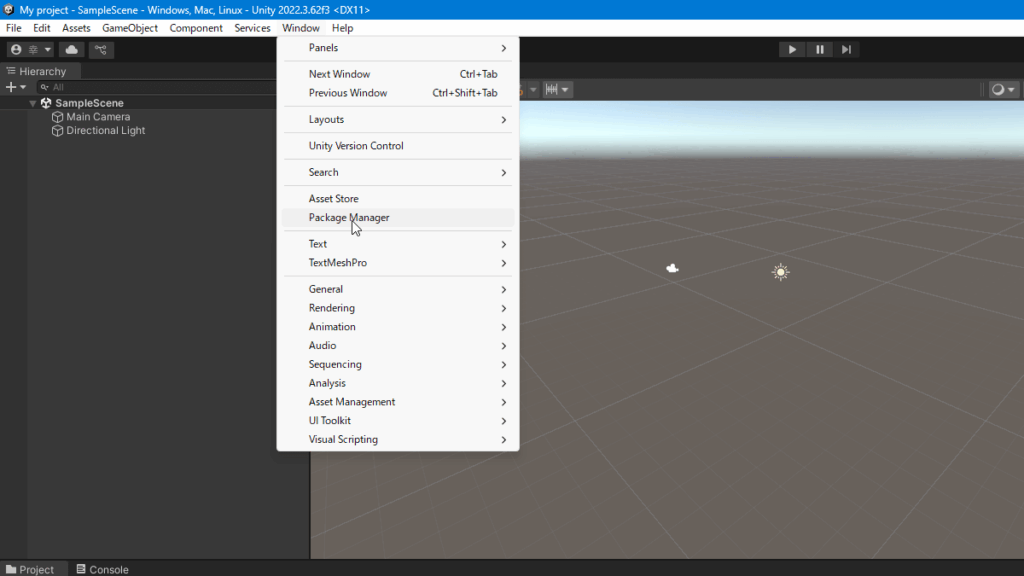
From the menu at the top of the Unity screen, click "Window" → "Package Manager".
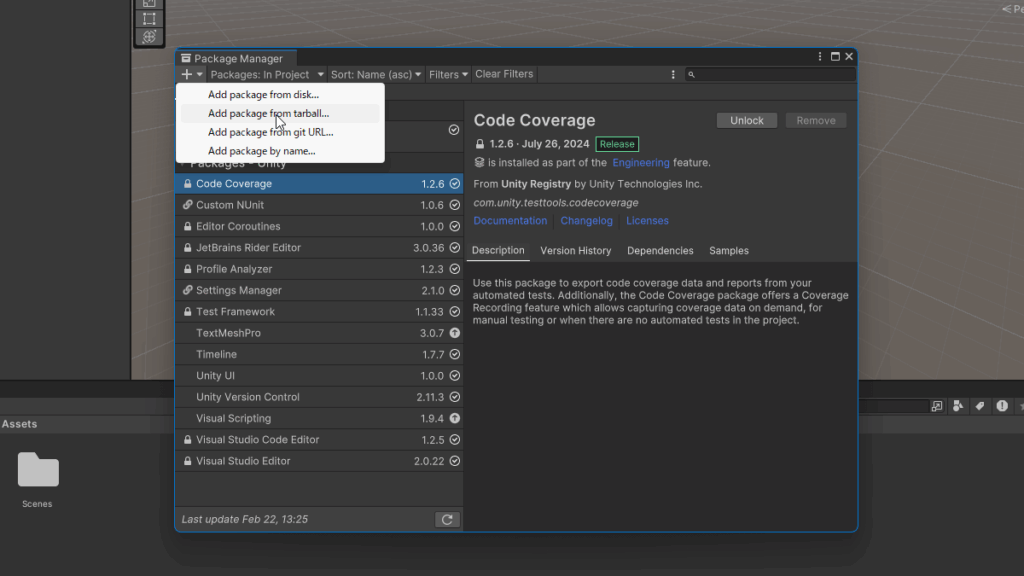
- Click the "+" button in the top left of the screen (above All)
- 「Add package from tarball…"
- Select the downloaded "PLATEAU-SDK-for-Unity-v*.tgz"
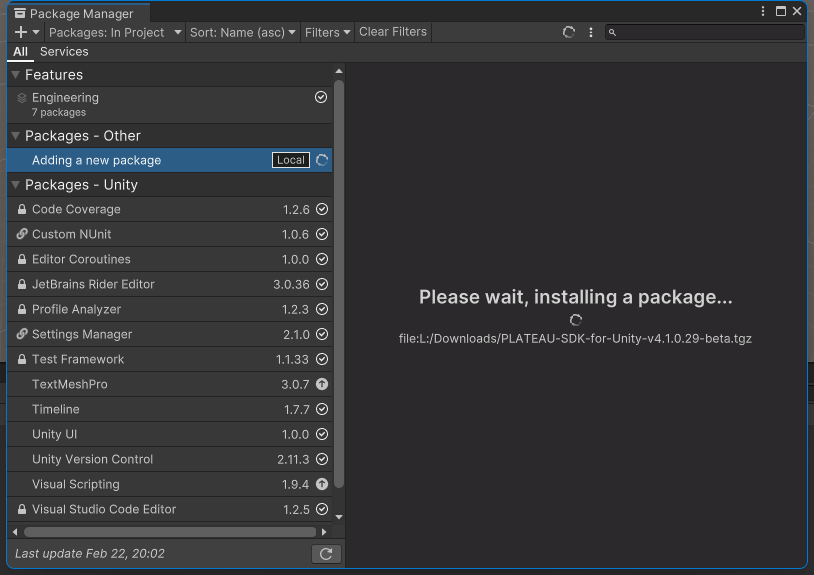
Wait a while until the installation is complete.
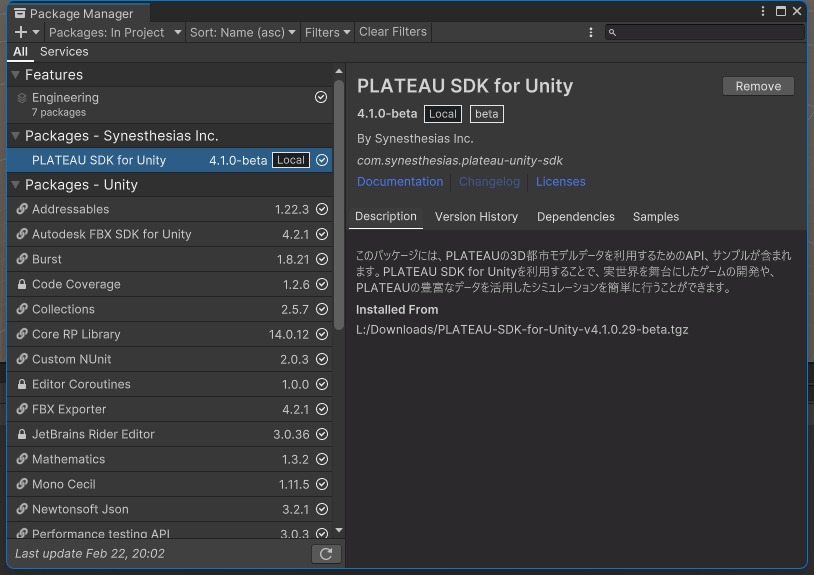
Please check if "PLATEAU SDK for Unity" has been added to the list on the left side of the screen. If it is displayed, the installation was successful.
What to do if Unity freezes
After that, in my environment, Unity was stuck on "Importing assets" and the process was stuck. This state continued for more than 20 minutes, so I forced Unity Hub to quit from the Task Manager.

Completely quit Unity
Open Task Manager and close "Unity Editor".
Reset a corrupted cache
Delete the following folders in the project folder "My project".
- Library
- Logs
- Temp
Launch Unity with a command
Please proceed to the next chapter, "Starting a Unity Project."
Launching a Unity project
Open File Explorer and go to the folder where "Unity 2022.3 LTS" is installed.
C:\Program Files\Unity\Hub\Editor\2022.3.62f3\EditorRight-click on an empty spot in the folder and select "Open in Terminal."
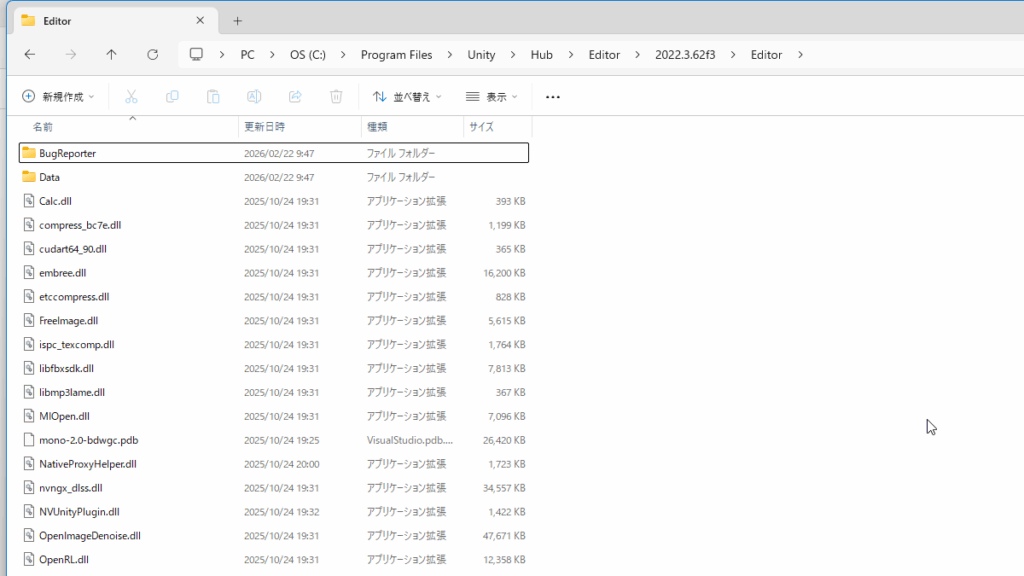
Once PowerShell is running, run the following command:
.\Unity.exe -projectPath " (your Unity project location) ""example:
.\Unity.exe -projectPath "C:\Unity\My project""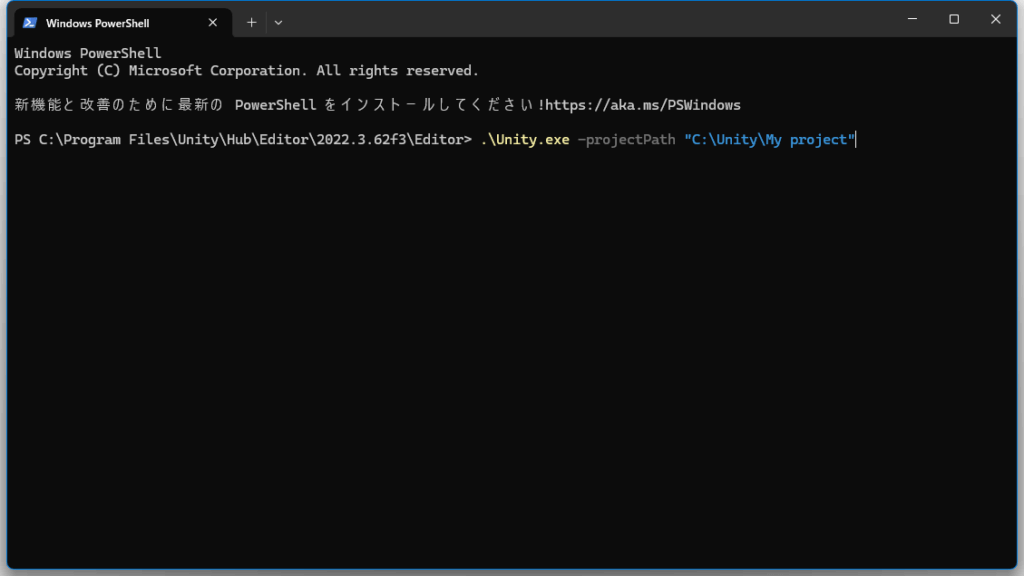
You can now launch your project directly from Unity 2022.3 LTS.
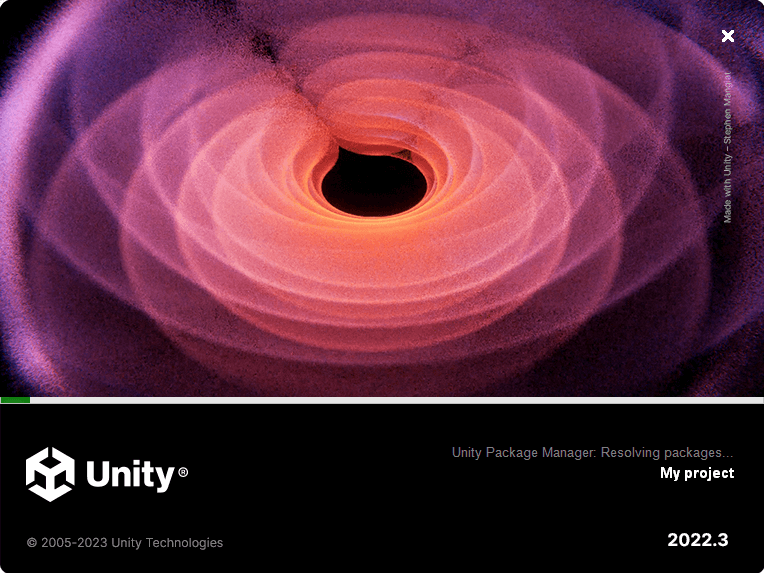
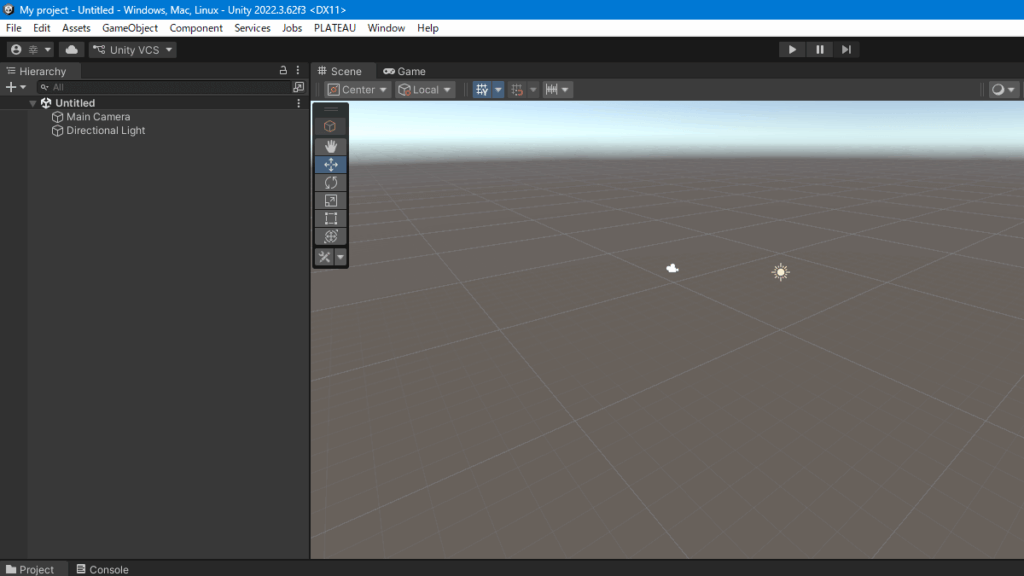
After launching, " appears in the menu at the top of the Unity screen.PlateauPlease check if " has been added. If it is displayed, the installation was successful.
Required settings before loading a 3D city model
PLATEAU's 3D city model is so huge that it cannot be compared to a regular Unity asset. If you load it without any settings,
- Unity won't finish for hours
- Stuck on "Hold On..."
- Freeze due to lack of memory
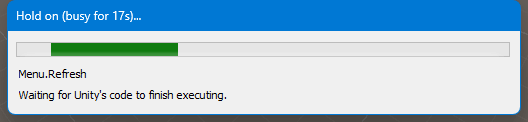
Therefore, this chapter summarizes the Unity settings that you should make before loading PLATEAU.
Disable Auto Refresh
Every time you activate Unity, the "Importing assets" dialog box appears, and you cannot do much with it. Therefore, make the following settings.
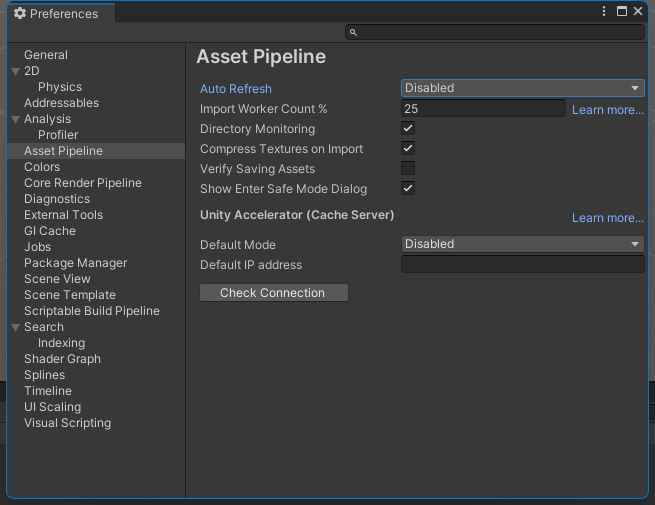
- Click "Edit" → "Preferences..." from the menu at the top of the screen.
- Select "Asset Pipeline" from the left menu
- Change "Auto Refresh" to "Disabled"
How to manually refresh
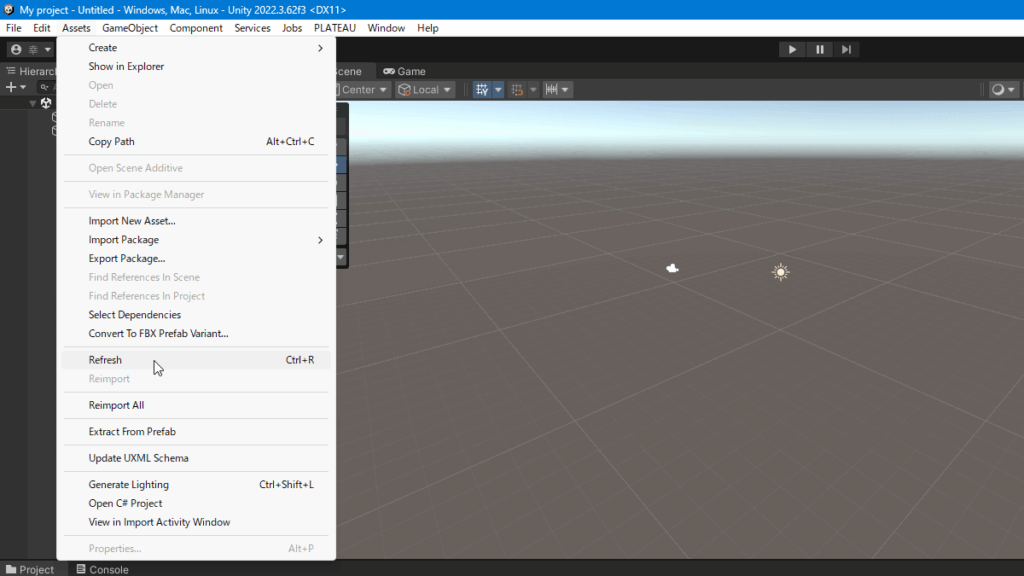
Click "Assets" → "Refresh" from the menu at the top of the screen.
This will immediately refresh the data. If you have added data to PLATEAU or changed the file externally, please use this operation to update the data.
Adjust the Import Worker Count
Unity uses a lot of CPU power in its default settings, which can cause PC freezes on PLATEAU.
- Click "Edit" → "Preferences..." from the menu at the top of the screen.
- Select "Asset Pipeline" from the left menu
- "Import Worker Count" to "Number of CPU cores − 1Set it to
example:
Number of CPU cores: 8 → Import Worker Count is 7 Number of CPU cores: 16 → Import Worker Count is 15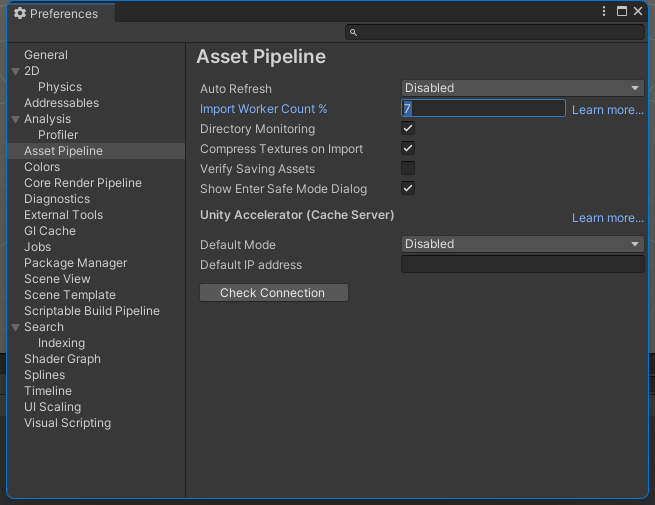
How to check the number of CPU cores (Windows)
- Press Ctrl + Shift + Esc (to launch Task Manager)
- Open the "Performance" tab from the left menu
- Select "CPU" from the left side
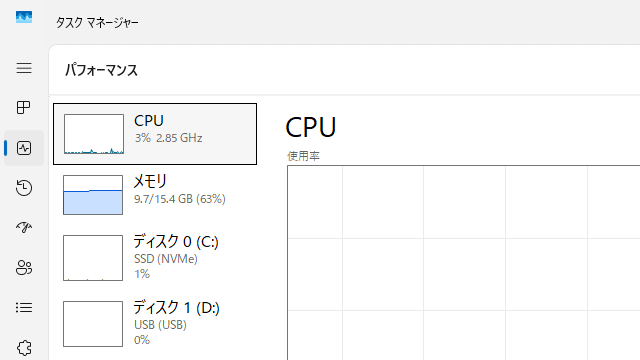
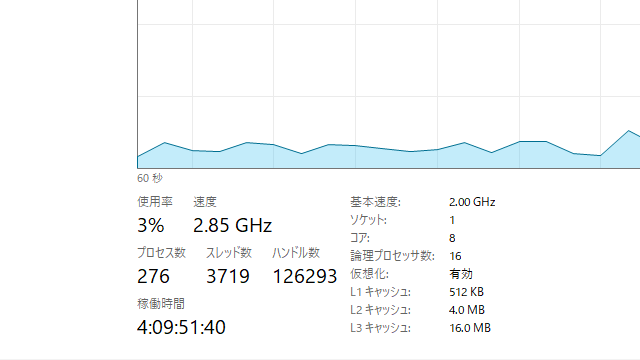
The number of "cores" displayed on the screen is the number of CPU cores. *In this example, 8It's the core.
Importing 3D city models
Save the initial display data
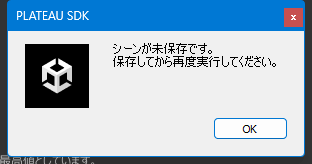
Save the initial display scene under a name of your choice, such as "temp." If you do not do this, the message "Please save and try again" may be displayed during subsequent operations, and the process may be interrupted.
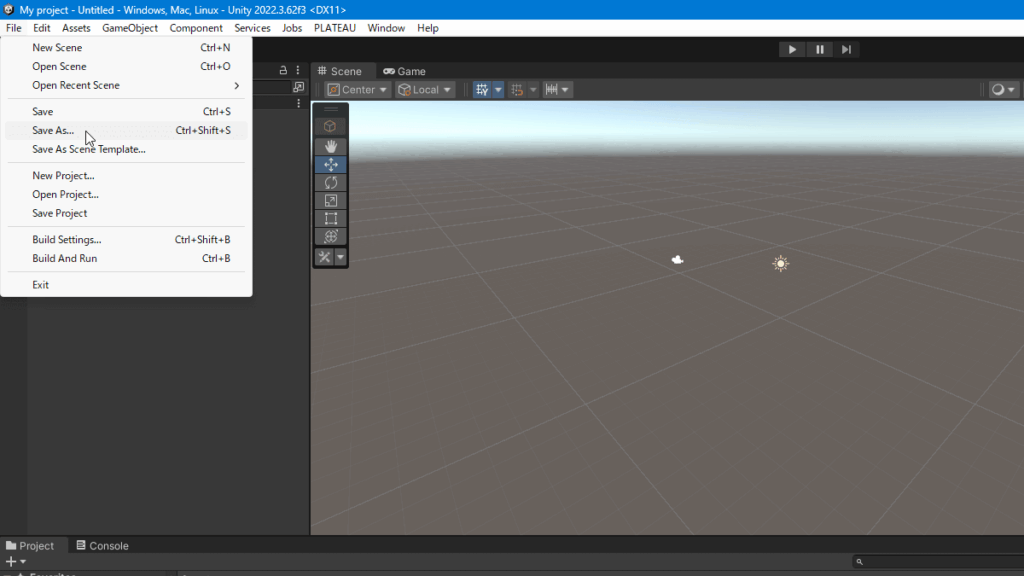
- Click "File" → "Save As..." from the menu at the top of the screen
- In the save dialog that appears, navigate to the "Assets" → "Scenes" folder.
- Enter any name, such as "temp", and save it.
Selecting a Dataset
Click "PLATEAU" → "PLATEAU SDK" from the menu at the top of the screen. "PLATEAU SDK" will launch in a separate window.
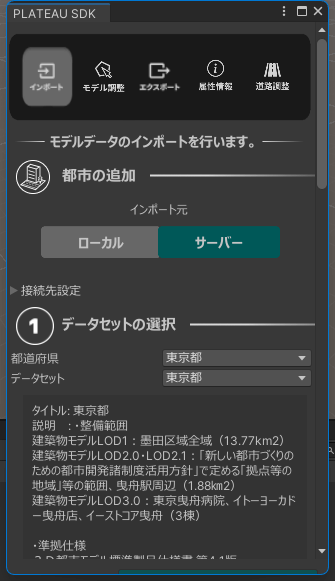
The screen is small and difficult to see in its initial state, so click the square button in the upper right corner to maximize it.
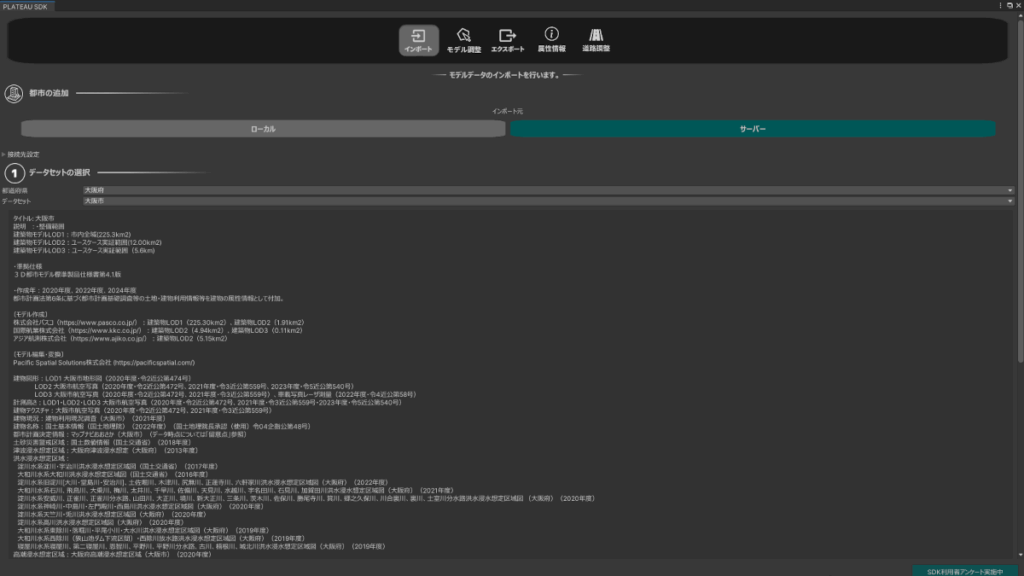
Select "Server" as the import source for "Add City." The data will start loading, and after a while, the dataset selection screen and a list of city names will be displayed. In this example, select "Osaka City" in "Osaka Prefecture."
Scroll to the bottom of the screen and select the coordinate system that corresponds to the target area in the "Reference Coordinate System" section. After setting the "Reference Coordinate System", click "Select Range".
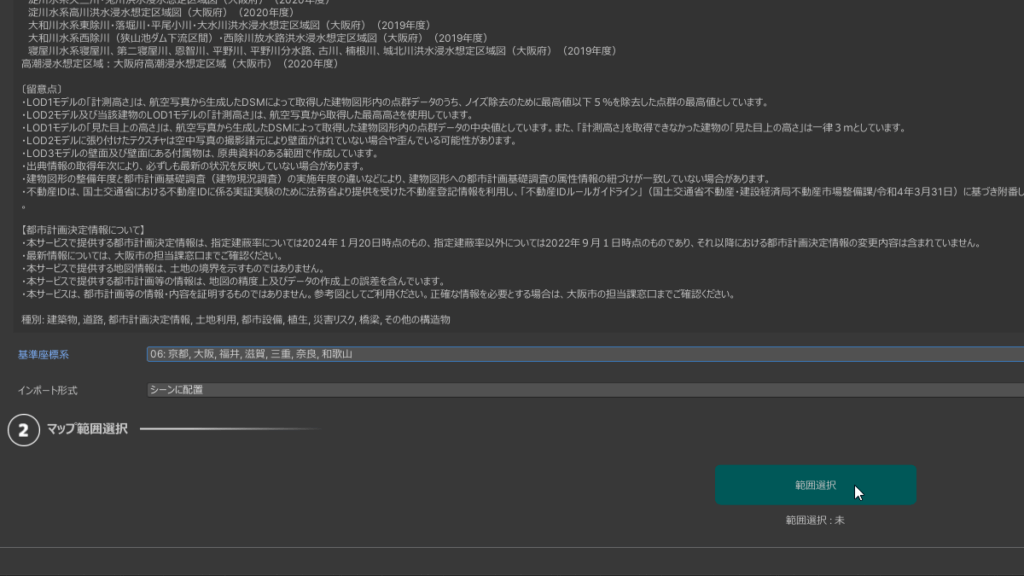
3D city model area selection
If you drag the PLATEAU SDK screen to the edge, the map will appear on the Unity screen behind it. At this stage, the 3D city model has not yet been generated, and you are now in preparation to specify the area to load.
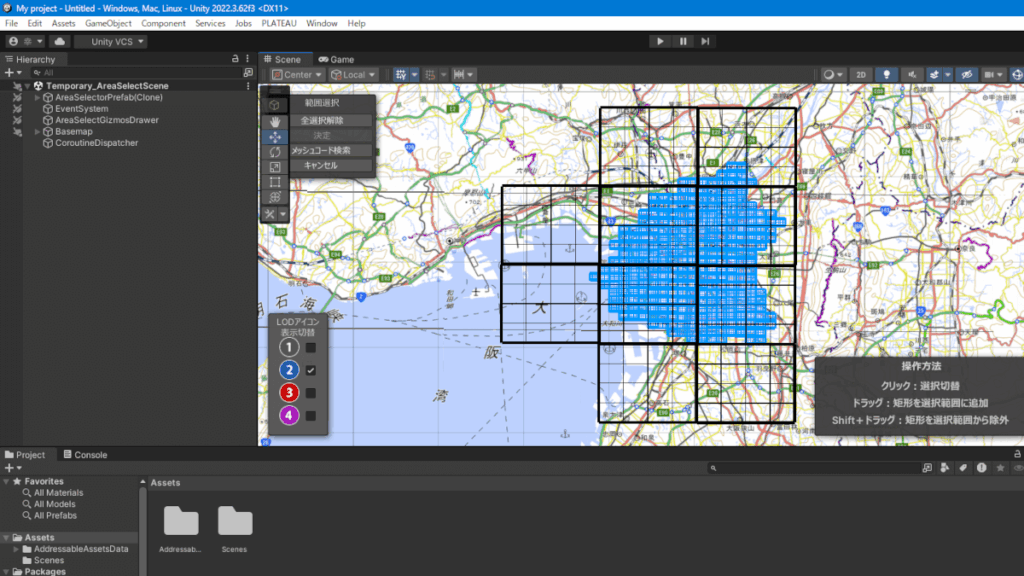
There is an "LOD icon display switch" at the bottom left of the map. LOD (Level of Detail) indicates the level of detail of the building model, and there are mainly the following levels:
- Lightweight (for distant views)
- Standard Shape
- High-definition model
- More detailed data
For structure creation purposes, "LOD2" is sufficient, so uncheck everything except "LOD2".
First, zoom in and move to the desired area. In this example, we will display the area around JR Osaka Station. You can zoom in and out of the map by turning the mouse wheel. Zoom in on the map, select the area you want to load, and click "OK" in the upper left.
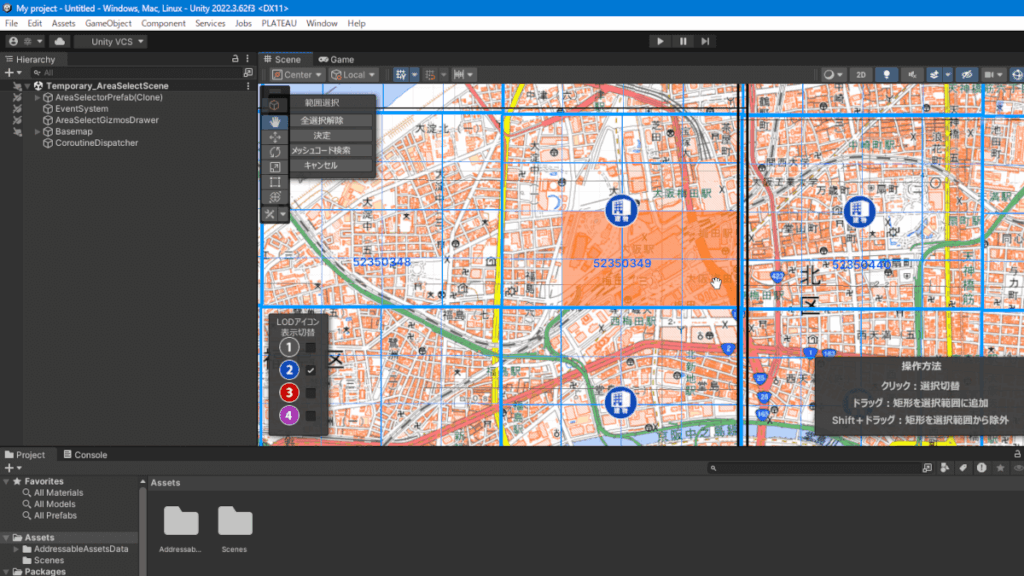
Selecting a range that is wider than necessary will significantly increase loading times and memory usage, so we recommend narrowing it down to only the range you need.
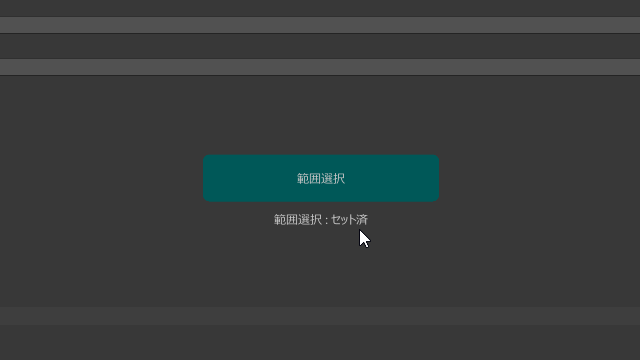
Finally, move the "PLATEAU SDK" window that you moved to the edge of the screen back to the center and confirm that it says "Range Selection: Set."
Importing 3D city models
The following items will not be used when creating structures, so leave them unchecked.
Items to uncheck:
- Combining Textures
- Roads: Import
- Terrain: Import
- Urban Planning Decision Information: Import
- Disaster Risk: Import
- Land Use: Import
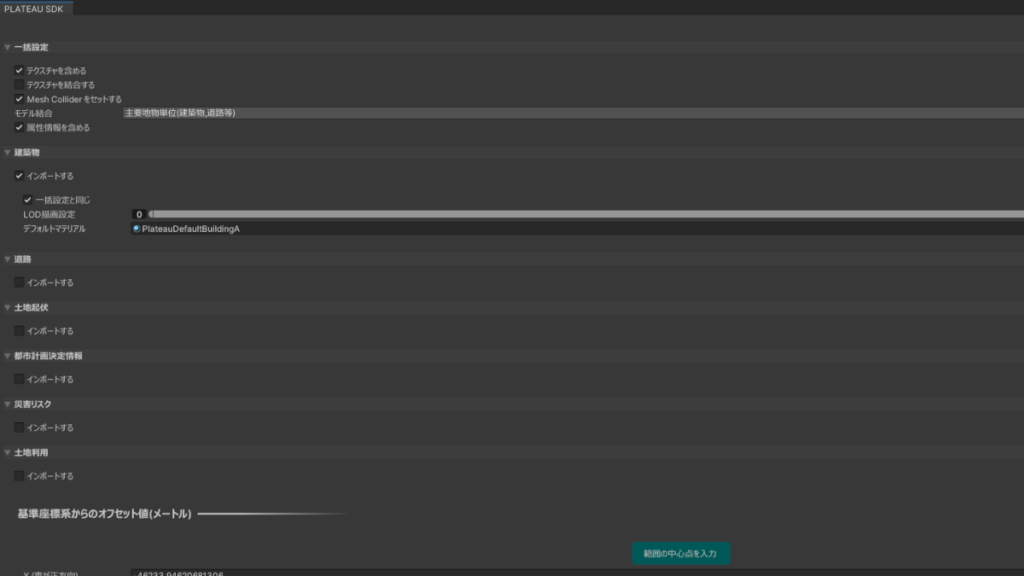
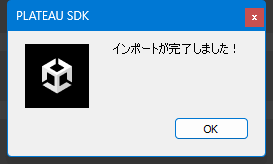
After confirming the settings, scroll down the screen and click "Import Model." After a while, a dialog box will appear saying "Import completed!"
Switch the perspective of the 3D city model
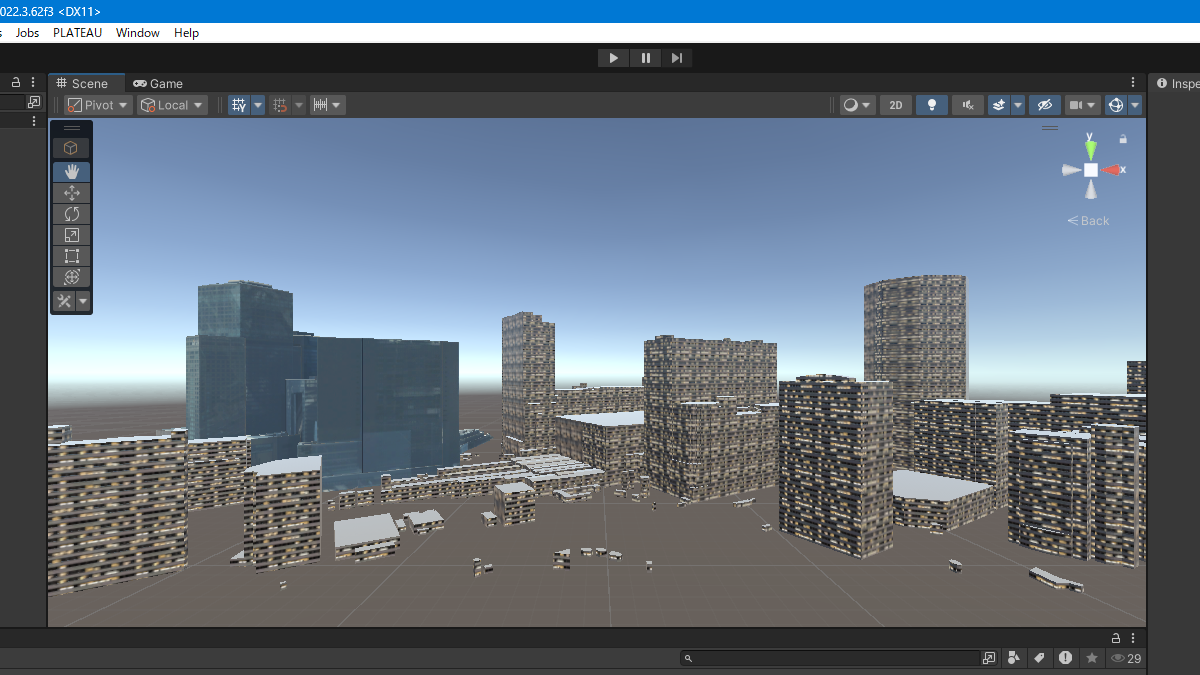
When you return to the "Unity" screen, it may appear that nothing is displayed, but this is because the model's display position and the camera position are misaligned.osaka_shi_city_…” and press the “F” key on your keyboard once.
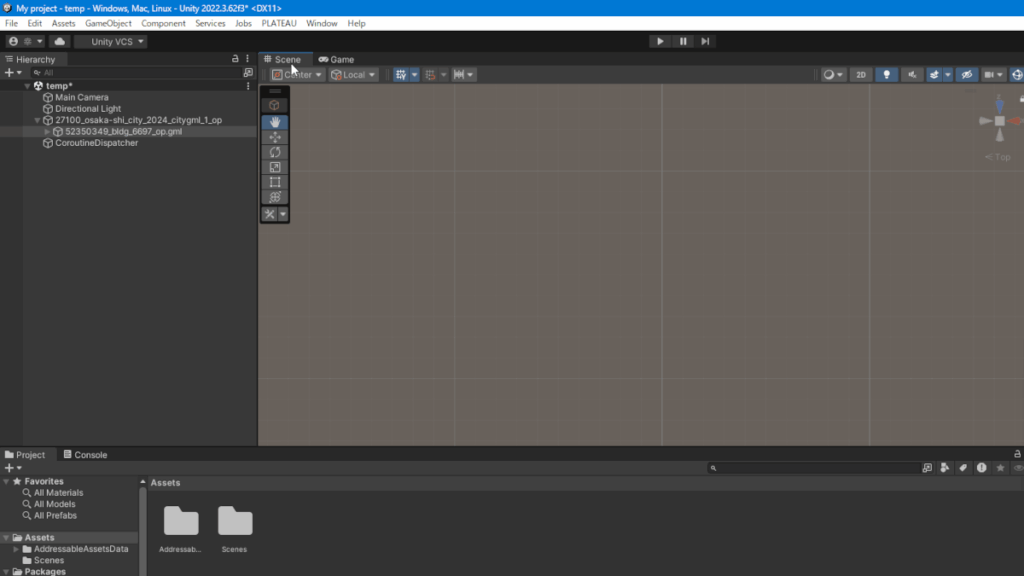
The Scene camera moves to the selected object and the model is displayed. The camera is currently facing directly upwards in a "top view" (bird's-eye view).
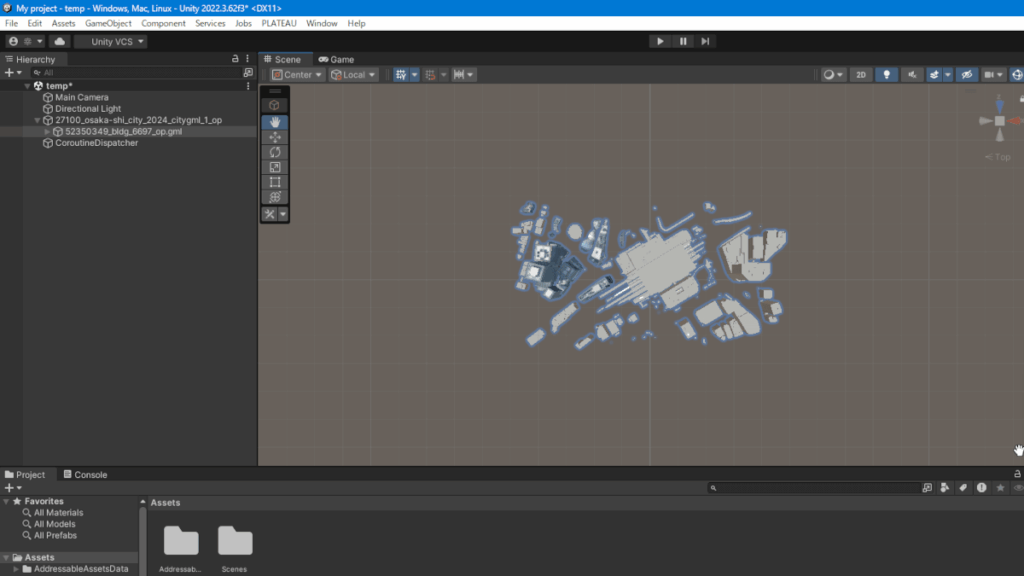
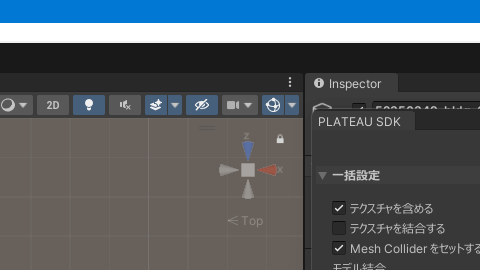
The "Scene Gizmo" is displayed in the top right corner of the screen. Click the small padlock (key) icon in the top right corner to unlock it.
"Scene Gizmo" is a navigation tool that controls the viewpoint direction and is displayed in the upper right corner of the Unity Scene screen.
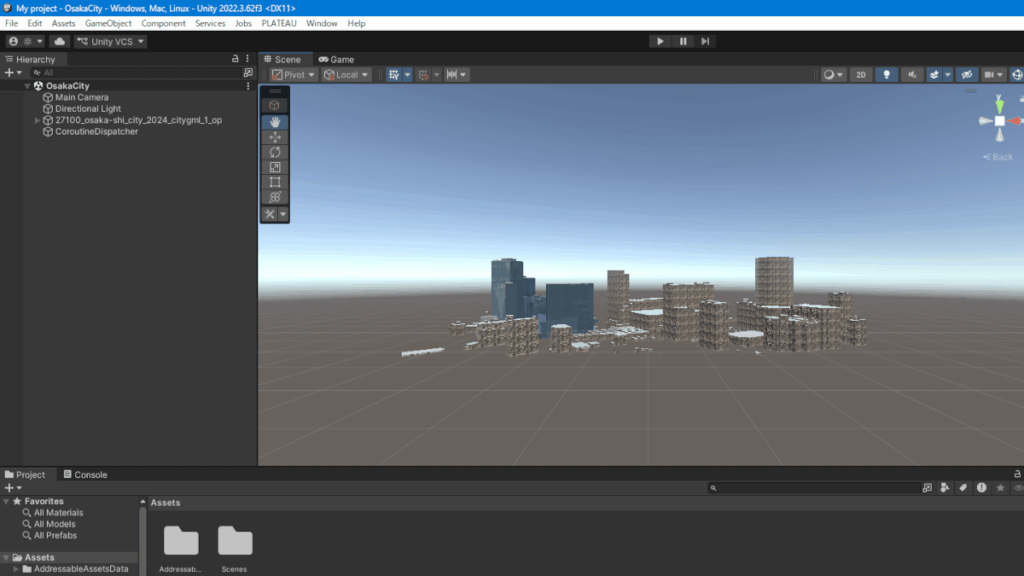
Next, click on the lower cone (vertical triangle) on the crosshairs of the "Scene Gizmo" to switch to a side-on perspective.
Exporting 3D city models
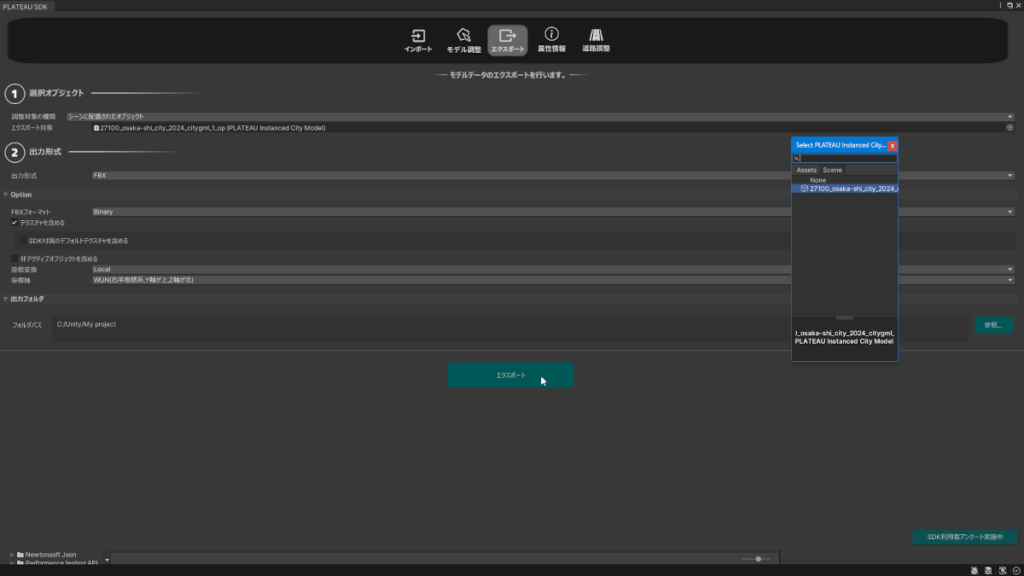
To export a 3D city model, follow these four steps on the "PLATEAU SDK" screen:
Select what to export
Click the small icon on the right side of "Export Target" to display the selection dialog.osaka_shi_city_…"
Selecting the output format
The output format is "FBXFBX is a good choice because:
- The building hierarchy is maintained
- Easy to edit multiple buildings individually
- Many 3D software programs support it as standard.
Select output folder
Click the "Browse" button to the right of the "Folder Path" input field and specify the destination folder.
Running the export
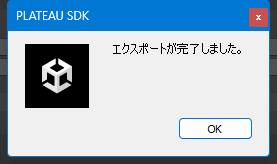
Click the "Export" button to start the export. Once the process is complete, your work is complete.
This concludes the explanation of "How to use PLATEAU."
The next step is to convert the obtained 3D city model intoBlender" and design the building structure.How to use Blender" article will provide more details.